If you’re new to using mods, this guide will provide you with the steps to enable, download, and install mods. In addition, I will provide some tips for maintaining your mods folder and updating them regularly. Read this first for a step-by-step guide to enabling, downloading, and installing mods properly to enhance your game experience.
Enabling Mods
Before you can benefit from downloading mods, you have to enable them first. You can do this by loading your game, going to options, and clicking “Enable Custom Content and Mods” and “Script Mods Allowed”.
Follow the steps below to enable mods:
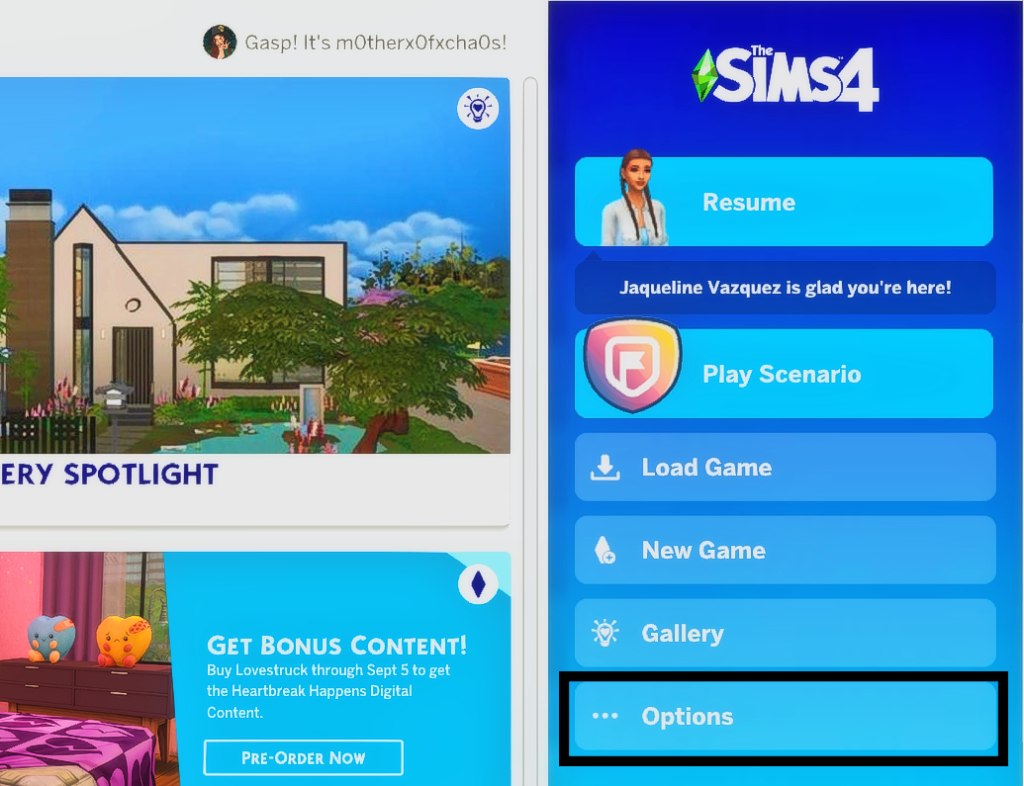
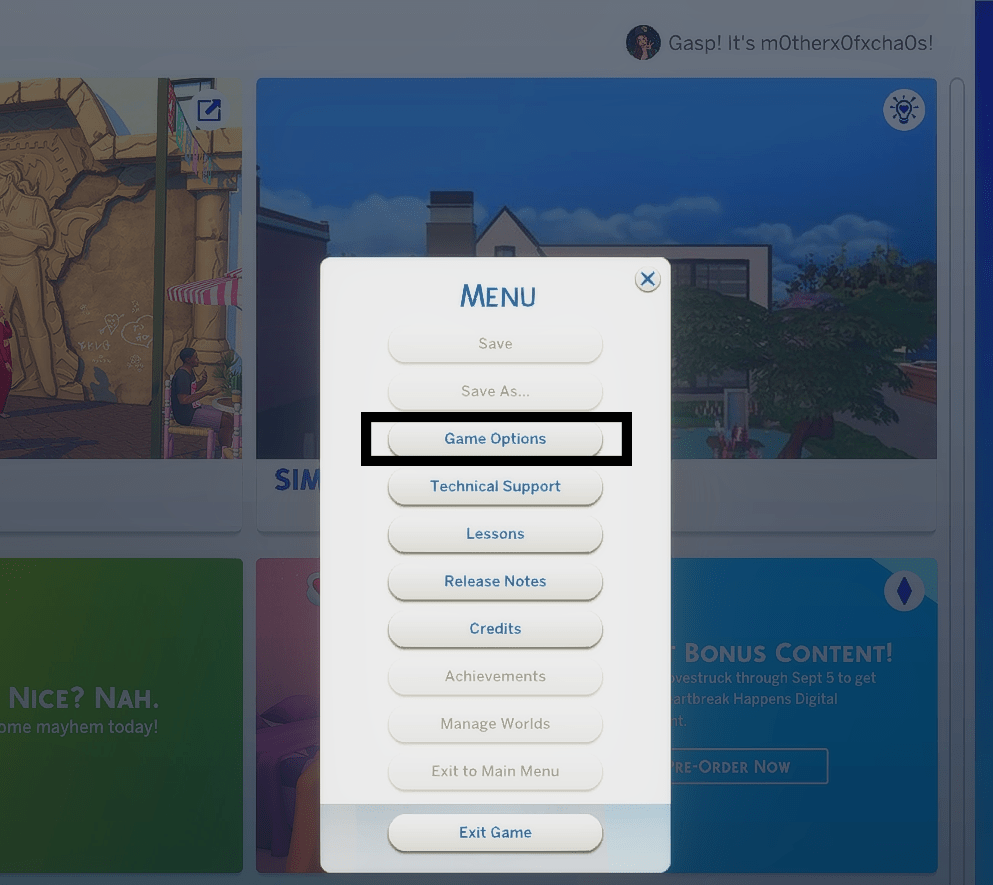
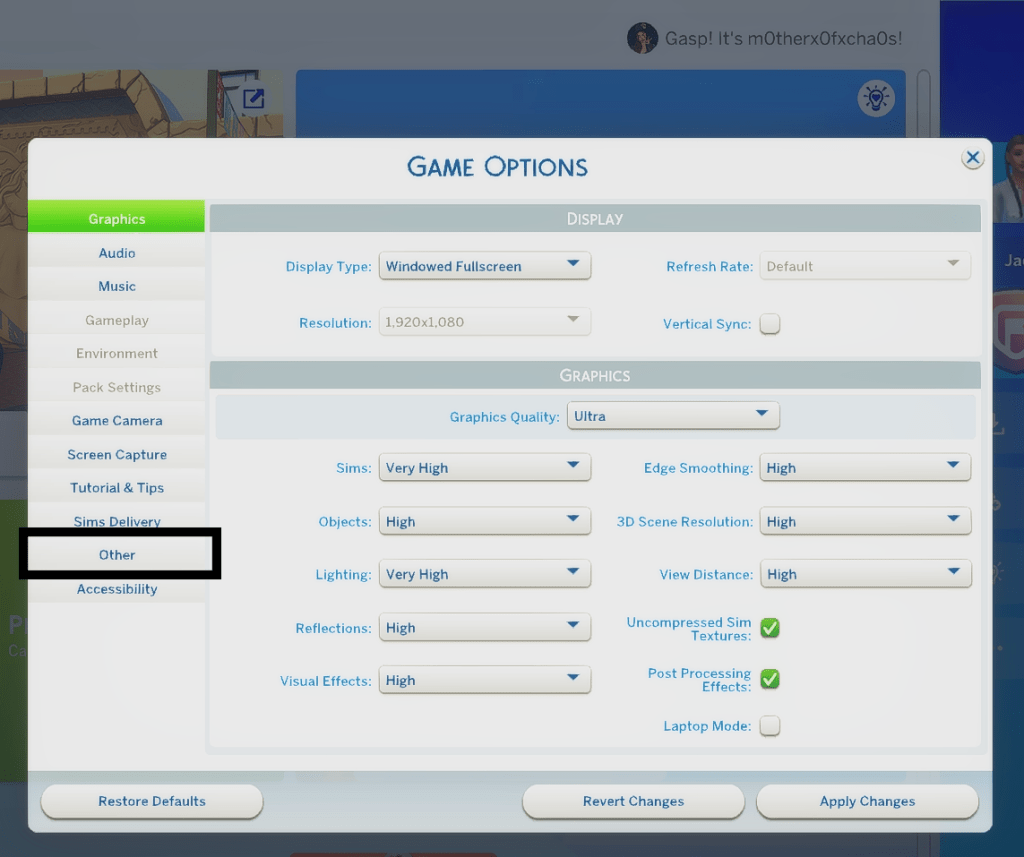
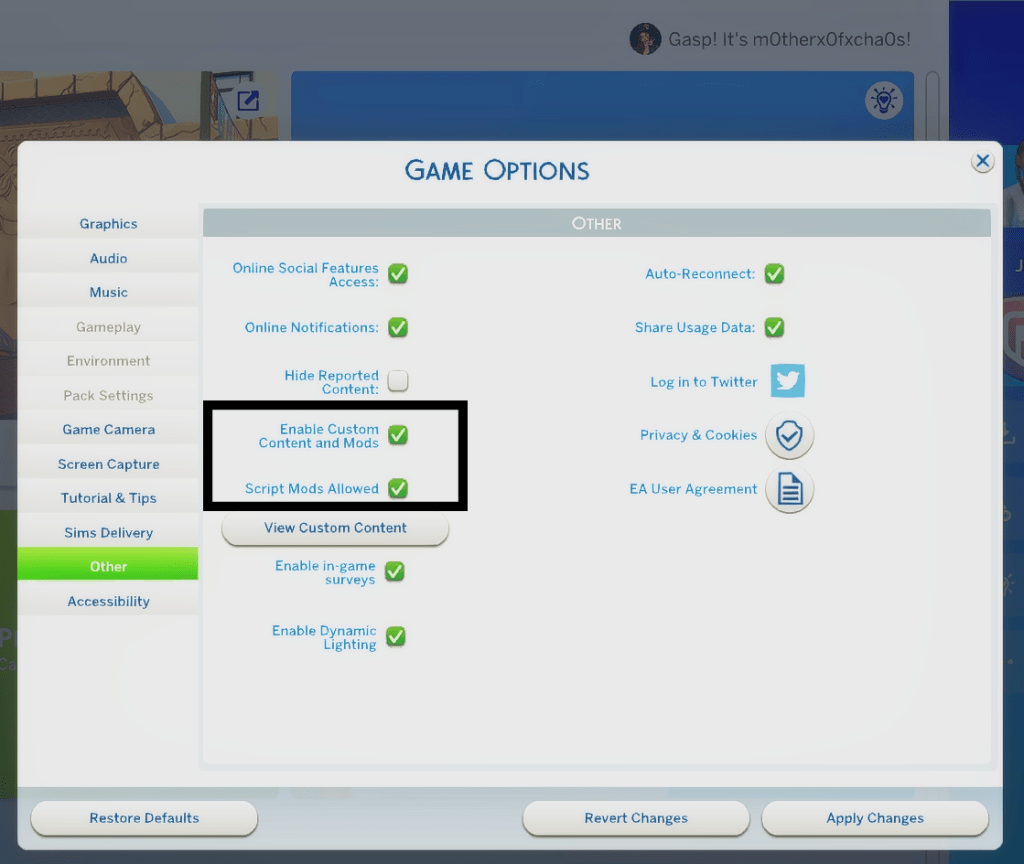

Launch the game and click on Options. From the game options menu, click Other. When the menu appears, click on Game Options. Check the boxes “Enable Custom Content” and “Script Mods Allowed”. Click Apply Changes then save and exit the game.
Downloading & Installing Mods
Once you’ve downloaded the files you want, go to your Downloads folder. Most of the time mods or custom content will download in a compressed folder ending with .zip or .rar file type that you will have to extract.
You can do this by simply right-clicking on the folder and choosing extract.
In some instances, you may need to download a program such as 7-zip or winzip which you can find free versions of online. This is usually due to a .rar file which is just another type of compressed file.
Now that you have downloaded and extracted your files, all you need to do is move them to the mods folder which you can find by following this path where your game is installed:
Documents/Electronic Arts/ The Sims 4/Mods
If you do not have a folder titled Mods, you can create a new folder and name it Mods. ONLY do this if there is NOT a folder titled Mods in The Sims 4 folder. Otherwise, two Mods folders will create unwanted issues in game.
YAY! Now you can start filling your mods folder with mods and custom content!
Return to your Downloads folder. Select your extracted files in your Downloads folder then copy them. Next follow the path to the Mods folder. Paste them here.
This is where all of your mod files will go that are .package or .script files. Next I will give you tips on how to keep your mods organized and manage them over time.
Deciding a System
Deciding how to manage your mods folder depends on what you have in it. If you have a lot of Create-A-Sim items, you may choose to sort your folder based on the items for CAS. If you use a lot of Build/Buy items, you may choose to sort those as well based on what you have. If you are using mods that change or add elements to your gameplay, you may want to sort those in folders by creator or mod.
The point is to decide what’s going to make it easier for you to locate mods later when you need to remove or update them. This is essential to keeping your game free from errors later on which can result in crashes and loss of data.
I cannot stress this enough how important it is to have some kind of idea where your mods are. For more tips and ideas about organizing your mods, you can read my guide about it here!
Important Things You Need to Know About Mods
There are a few things you need to remember about managing your mods folder and using mods:
1. Always keep .script files with their respective .package files. If they are separated, the mod won’t work correctly.
2. You can only put .script mods 1 folder deep inside your Mods folder.
Path Example:
Documents/Electronic Arts/The Sims 4/Mods/MCCC
This is referring to the .script and .package files intended to be together in the same location mentioned in #1.
3. Mods that are individual .package files can be up to 5 folders deep within the Mods folder. This goes for things like CAS items and build/buy items. This makes it so much easier for you to keep things as organized as you need if you have a lot. This is popular for clothing.
Path Example:
Documents/Electronic Arts/The Sims 4/Mods/CAS/Clothing/Female/Tops/Adult
4. Don’t have duplicate files in your mods folder. This is only going to cause issues in your game. We don’t want that now.
5. Don’t rename the files! I cannot stress this enough. It will not benefit you or your game. It makes it harder to find mods when you need to update them and it will make it almost impossible to find duplicate mods. Just don’t do it and thank me later.
6. You will have to keep your mods updated over time, especially after a game patch or update. Often times the updates by EA will break mods and the creator’s will update them as they can.
My Recommendation for updating mods is to:
A. Return to the creator’s Patreon or website to check for updates
B. Use the wonderful Scarlet’s List after updates to watch for mod updates.
As always, be respectful and patient of Scarlet and other creators for their time and efforts to making the Sims 4 better with all their hard work ❤










 m0therx0fxcha0s